

App User Guide
Our dedicated team of creative minds and strategic thinkers.
Getting Started
How to Register
Welcome to DragonFulfill! To start growing your business, first create an account.
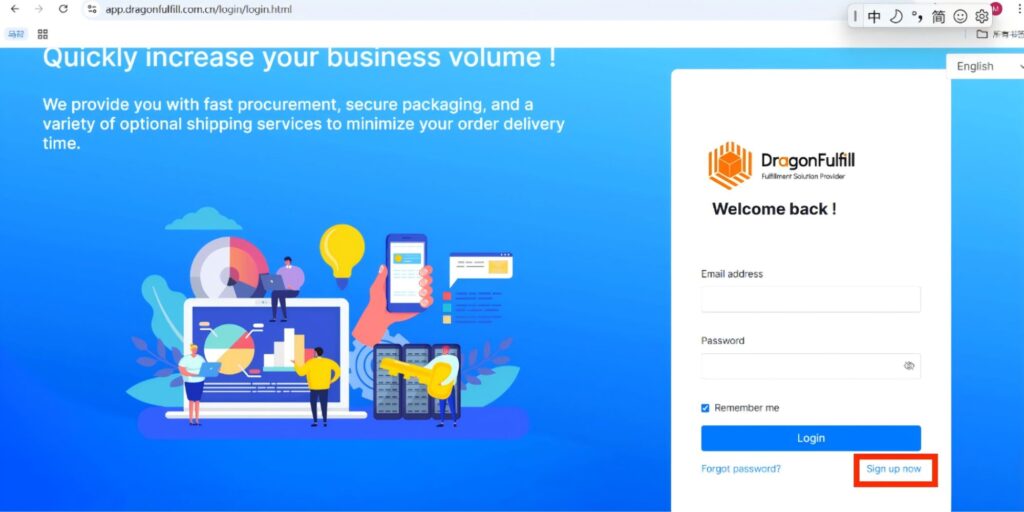
- 1. Visit our member system: app.dragonfulfill.com.cn
- 2. Click "Sign up now".
- 3. Enter your email, password, and required contact information to complete registration.
Connect Your Shopify Store
- 1. Log in to your dashboard and go to Store Management.
- 2. Click the Shopify Logo.
- 3. Enter your store URL and click "Install". You will be redirected to Shopify authorization page.
- 4. Click "Install App" to finish.
- Note: Once connected, orders will automatically synchronize from Shopify within 7 days.
Sourcing Products
Before fulfilling orders, you need a price quote for your products.
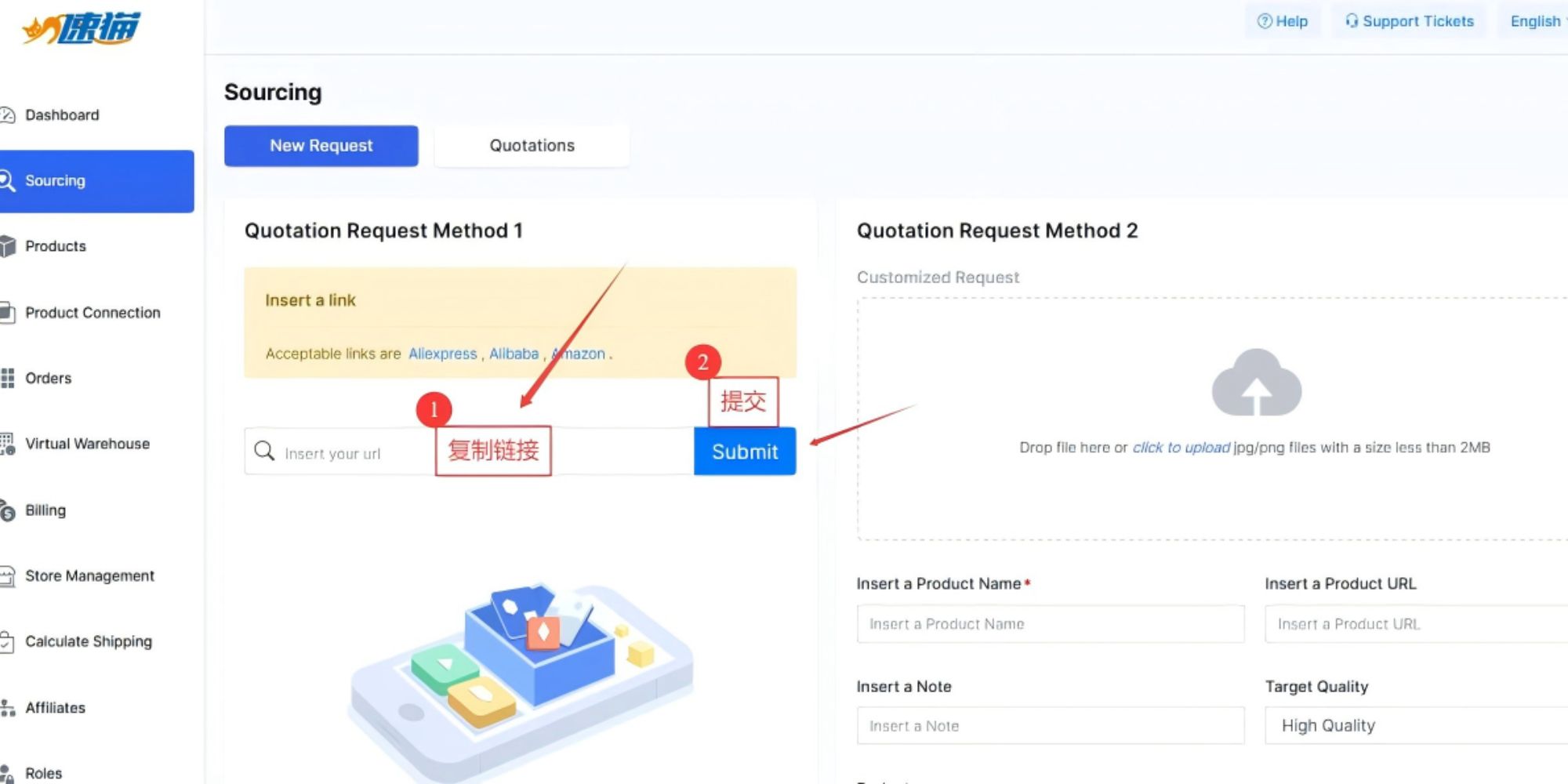
Method A: Submit via Link
- 1. Go to Sourcing > New Request.
- 2. Copy a product link (AliExpress, Alibaba, Amazon, etc.) and paste it into the "Insert a link" box.
- 3. Click Submit.
Method B: Ask for Quote from Orders
If your orders are already synced:
- 1. Go to the Orders page.
- 2. Select the orders you need to fulfill.
- 3. Click the "Ask For Quote" button.
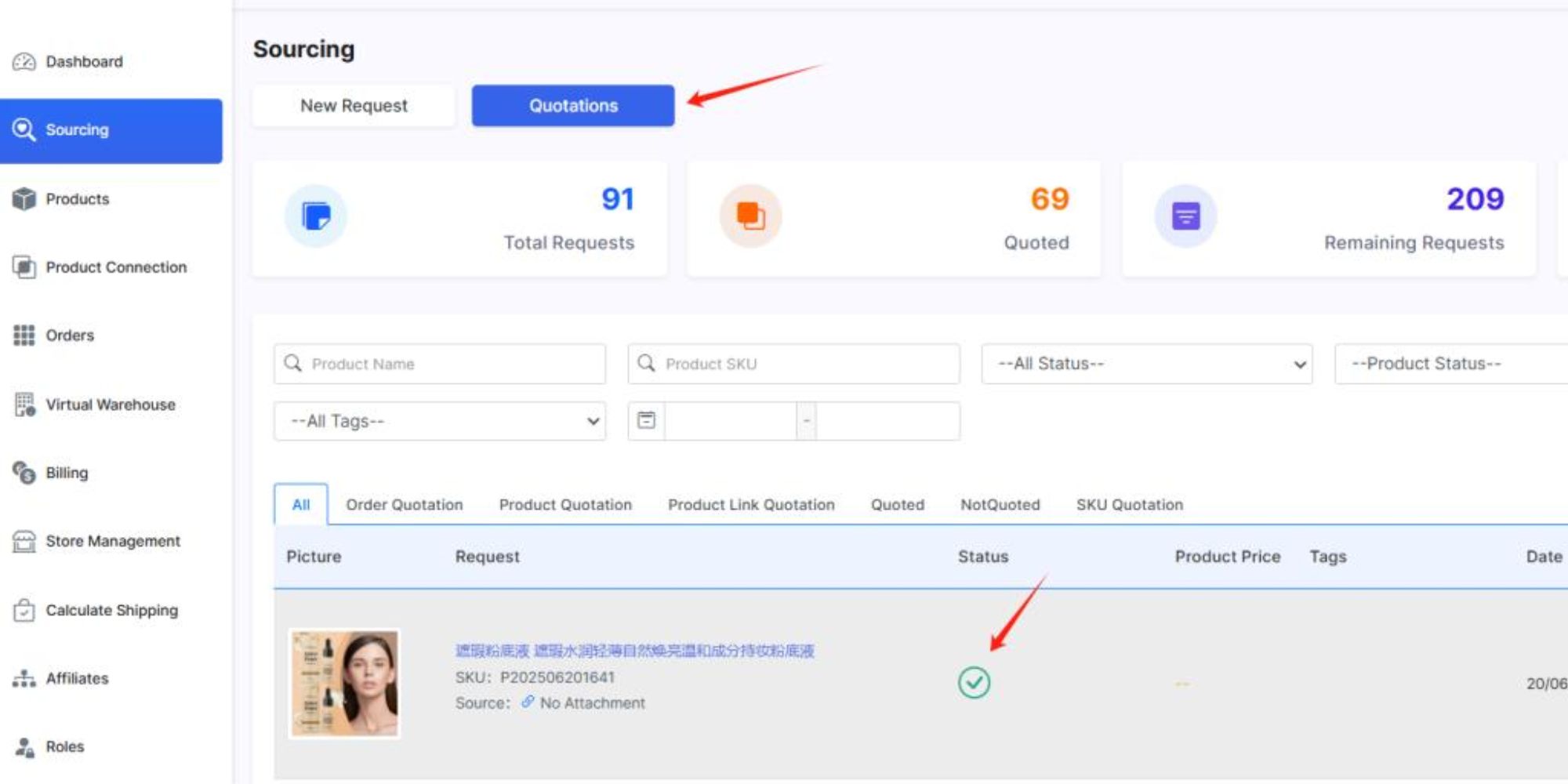
Check Quotation Status
Go to Sourcing > Quotations. When the status is updated, you can see the price. If you have questions, click “Need Info” to chat with our staff.
Orders & Fulfillment
Processing Orders
- 1. Go to Orders (Synced from Shopify).
- 2. Select the orders you want to ship.
- 3. Choose Shipping Line: Select the carrier/method suitable for you.
- 4. Click Pay to cover product and shipping costs.
Samples & Manual Orders
Need to send a sample or create an order manually (outside Shopify)? Follow these steps:
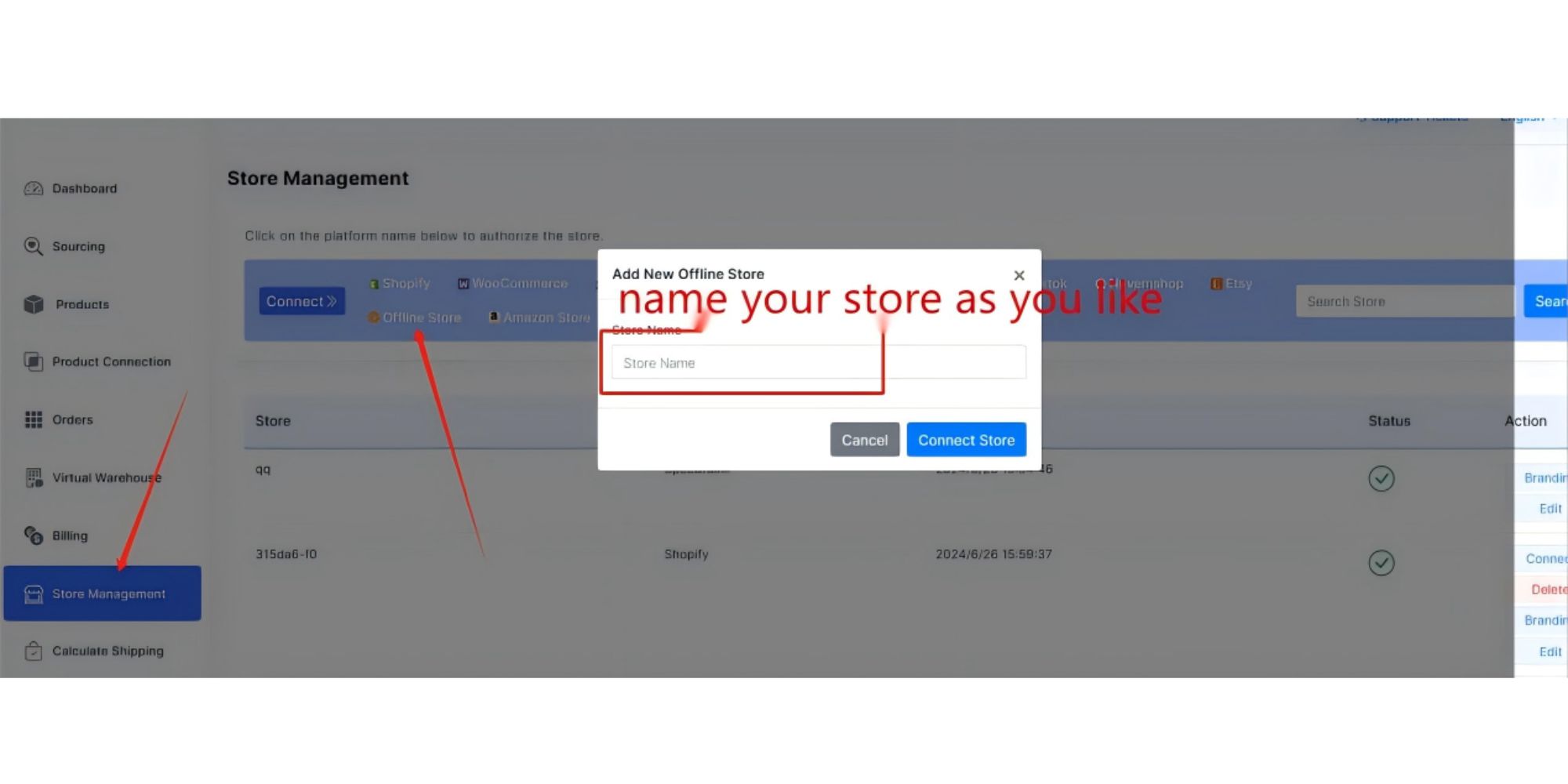
Step 1: Create an Offline Store
- 1. Go to Store Management.
- 2. Click Offline Store (e.g., name it "My Samples").
Step 2: Create the Order
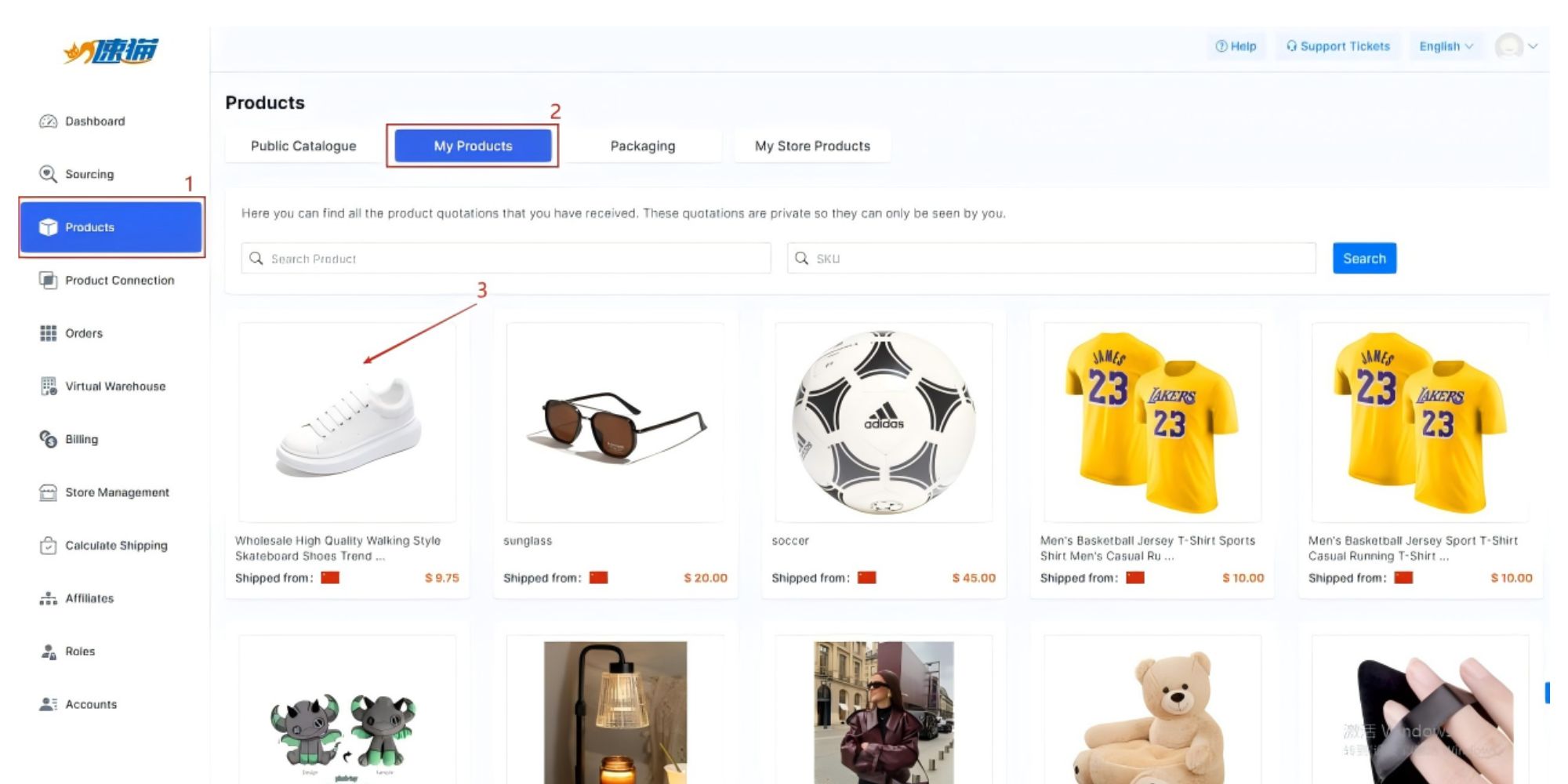
- 1. Go to Products > Public Catalogue (or My Products).
- 2. Find the product you want and click the Heart icon to favorite it, or select it directly.
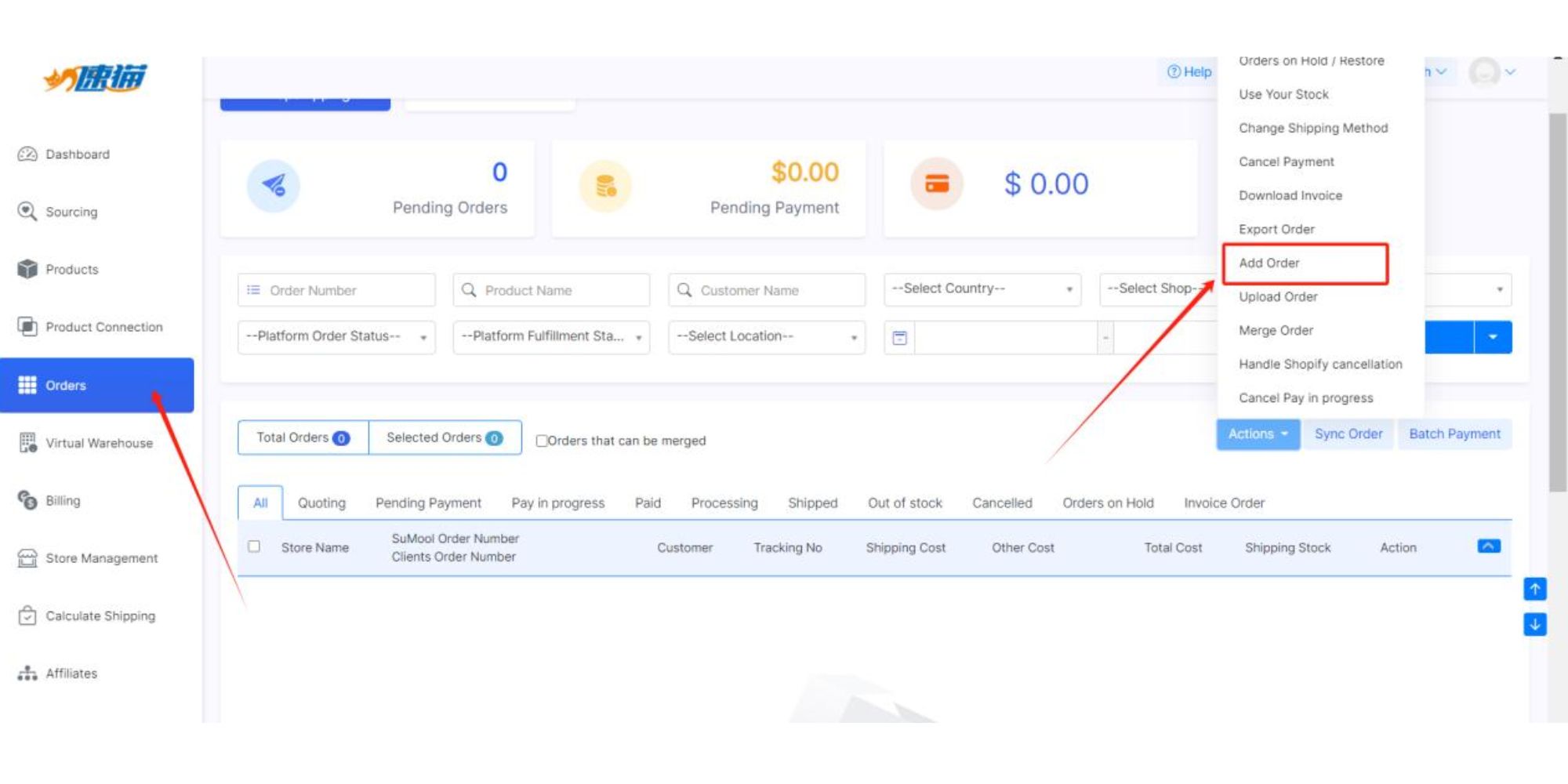
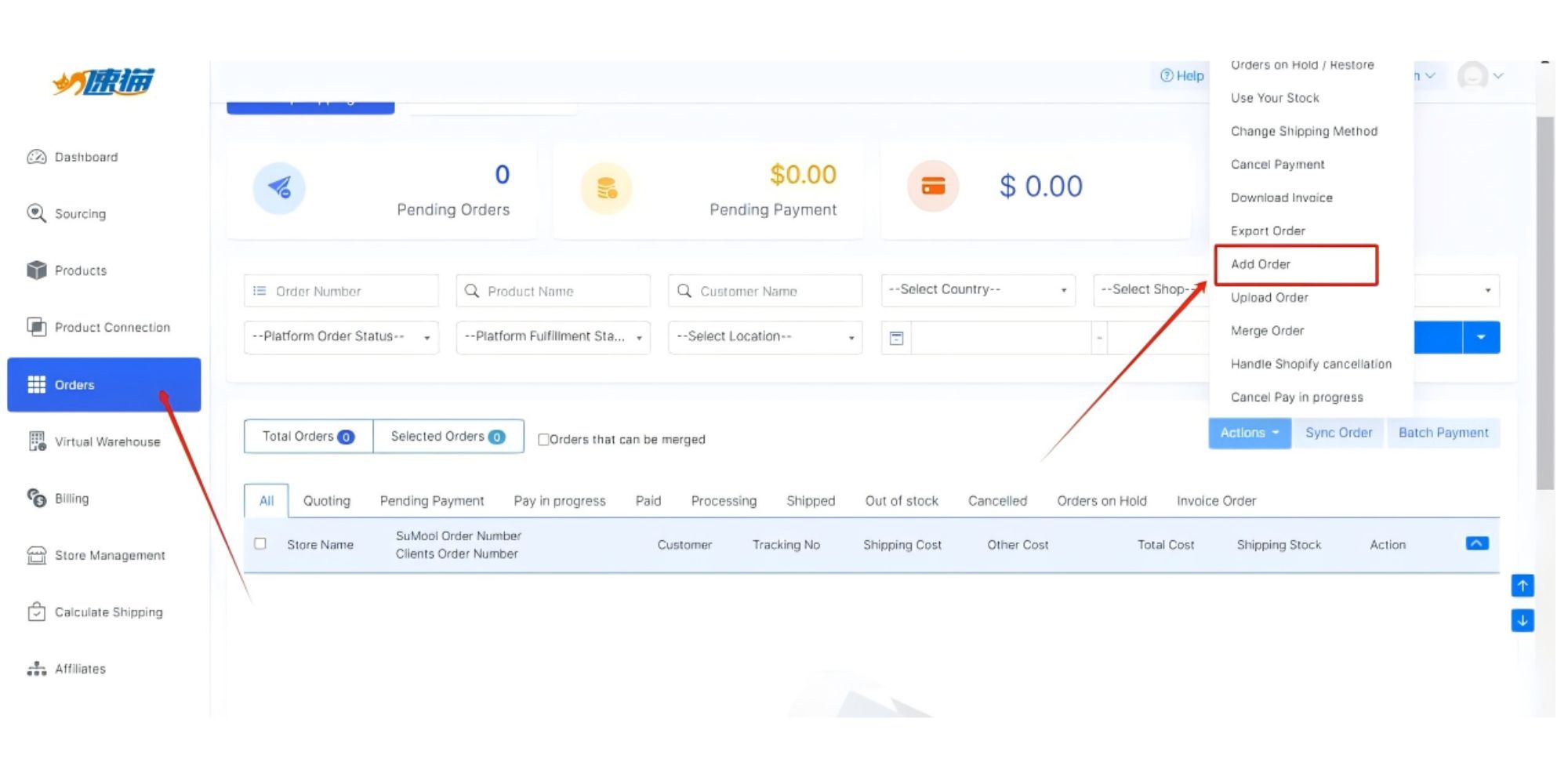
- 3. Go to Orders > Add Order.
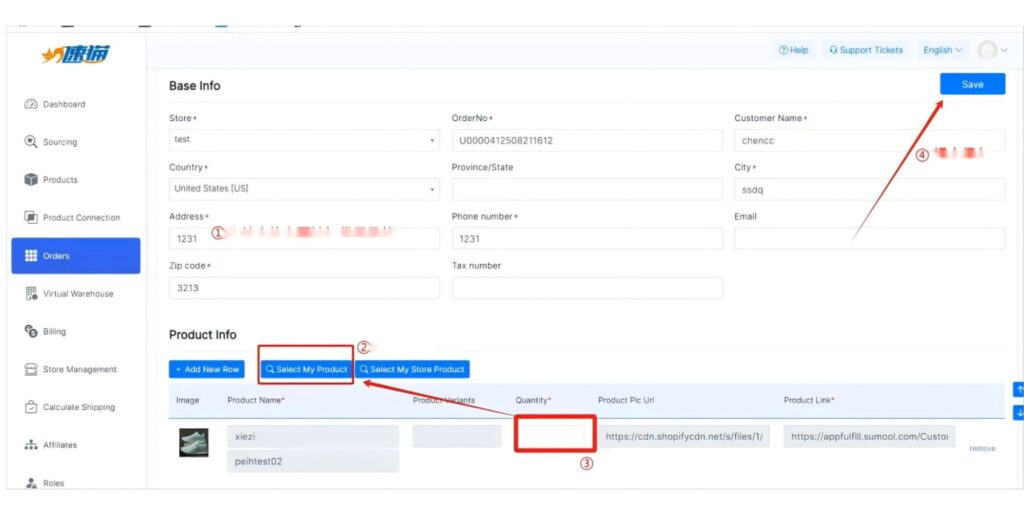
- 4. Fill in the recipient details (Address, Phone, Name) marked with *.
- 5. Select the product and quantity.
- 7. Click Save. The system will generate a bill automatically.
- 6. Go to the payment page to complete the purchase.
Inventory Service
For high-volume sellers, you can buy stock in advance to lower product costs and speed up processing.
How to Stock Up (Bulk Order)
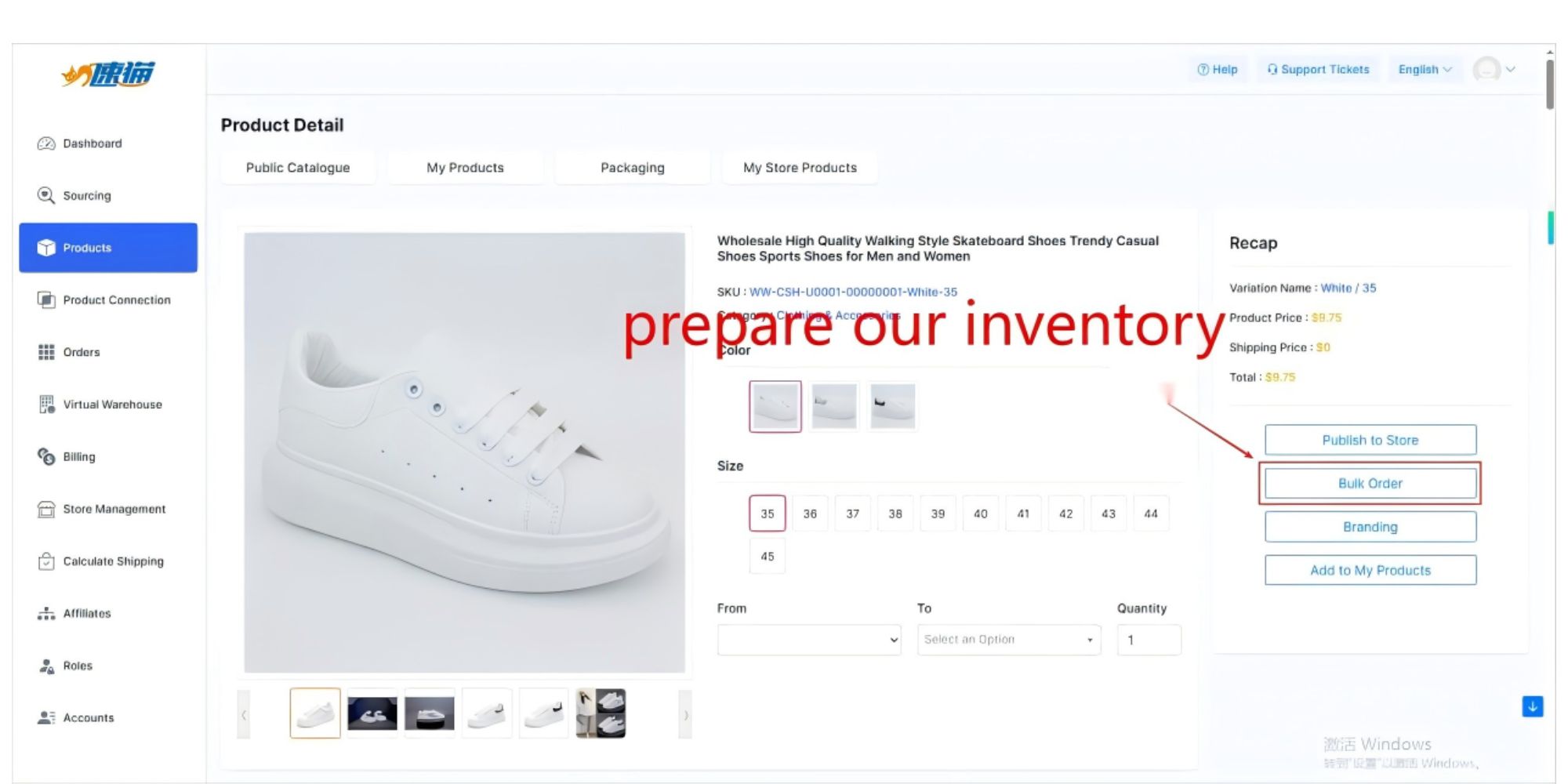
- 1. Go to Products and select the item.
- 2. Click Bulk Order.
- 3. Customize: Choose packing materials (e.g., custom logo box/bag).
- 4. Destination: Choose the warehouse (e.g., DragonFulfill China Warehouse).
- 5. Submit: Enter the quantity for each size/variant and submit the quote.
- 6. Once you pay the invoice, the stock will be moved to your Virtual Warehouse.
Using Your Stock for Orders
When new orders come in:
- 1. Go to Orders.
- 2. Select the orders.
- 3. Choose "Use Your Stock".
- 4. Benefit: You will only be charged for the shipping fee, as the product cost was already paid during the bulk order.
Billing & Payments
Top-Up via Bank Transfer
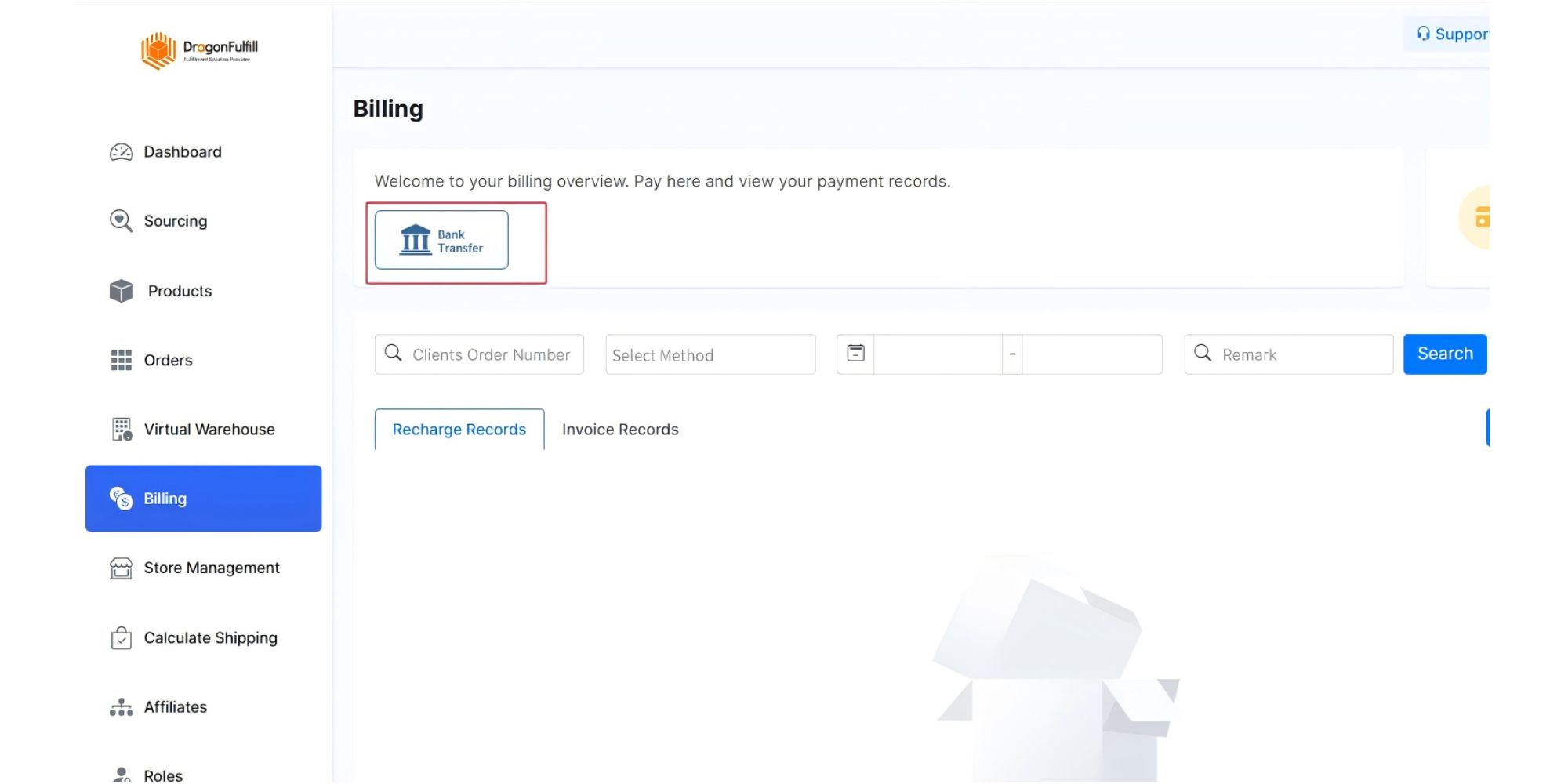
- 1. Go to Billing.
- 2. Click Recharge / Bank Transfer.
- 3. View our bank account details.
- 4. Important: After transferring, please upload your Transfer Slip on this page. Our financial staff will confirm and credit your balance.
Join Us
Scale Your Dropshipping Business Today
Connect your store, sync your orders, and let us ship globally. Experience the power of DragonFulfill now.